
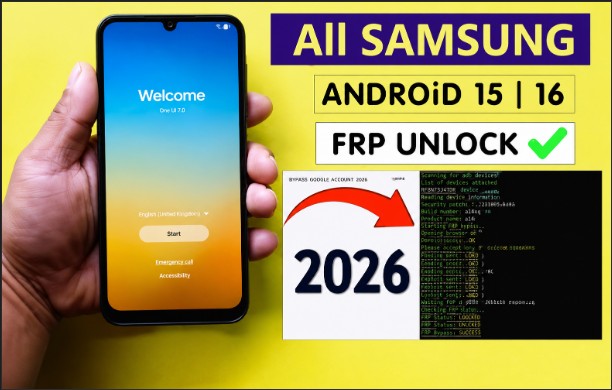
One of the most annoying problems in the field of mobile repair is locking your own Samsung phone after a factory reset. The phone goes back to the customer who turns it on and BAM! The Google account verification is placed between him and his device. If you work with Samsung phones with the Android 15 update, you probably know that Google has strengthened the FRP very much with the new version, as those tricks that were used for the Android 13 and Android 14 versions do not work.
The Samsung Android 15 FRP bypass that uses no computer can be found in this article. Absolutely no computer, absolutely no USB cord to the laptop, no commanding of a terminal with ADB. Just a phone, a connection via an active SIM or through a WiFi and these methods below. Whether you are a phone technician handling this situation constantly and you know what is what, or if you are an everyday person trying to access your own phone that has been blocked, this guide is for you.
One statement worth stating explicitly before these methods begin; FRP protection is implemented to deter the resale of stolen phones. These methods are not legal in most countries if used on a phone that is not owned by you. These methods are designed for authorized usage only.
Before getting into the methods, there is one thing worth saying plainly: FRP exists to protect stolen phones. Using these techniques on a device that does not belong to you is illegal in most countries. Everything here is for legitimate use on devices you own or are authorised to repair.
What Is FRP and Why Did Samsung Make It Harder on Android 15?
Factory Reset Protection, or FRP, was originally launched by Google in response to cell phone theft starting with Android 5.1. The concept is really easy. If someone steals your phone and factory resets it in an attempt to remove all of your data the phone will still ask for the Google account that was used on the device prior to the reset in order for it to function again. Without those credentials, the phone will effectively be bricked.
Samsung has always relied on a layer that they themselves put on top of the base Android to do FRP, and some new changes made in Android 15 are significant for bypass procedures. Some of the browser-based workarounds used to be able to navigate into the settings of the device during FRP screen, Samsung have blocked many of these new vulnerabilities on Android 15. Access via Quick Settings does no longer work the way it used to on earlier firmware's, some of the Accessibility workaround procedures are not functioning like they did on Android 13 (November 2024 and above security patches were released which have plugged a hole or two).
What works and what this guide focuses on are bypasses which exploit the Samsung-designed flow, use the Google account recovery flow, or are a few of the holes that Samsung have yet to block.
For anyone who wants to understand how FRP works at a technical level, Google's official Android documentation on Factory Reset Protection covers the architecture in detail.
What You Need Before Attempting a Samsung FRP Bypass on Android 15
Running through these steps without the right setup wastes time. Get these sorted first.
Things to check before starting the Samsung Android 15 FRP bypass
- A working Wi-Fi network or an active SIM card in the phone (you need internet access during the process)
- The Samsung model number (look at the back of the phone or check the box — it will be something like SM-A156B or SM-S918B)
- The Android security patch date if possible (Settings, About Phone, Software Information on an unlocked device; or check the firmware version your provider told you about)
- A second Android phone or tablet if you are using the Alliance Shield method described below
- Time — do not start this if you have five minutes. Some steps have waiting periods built in
One more thing. If you remember any part of the Google account email or password that was on the phone, try recovering it through Google's official account recovery page on another device before trying anything here. That is always the cleanest solution and it takes two minutes to attempt. Only move to the bypass methods if account recovery genuinely is not an option.
Method 1: Samsung Android 15 FRP Bypass Using the Setup Wizard Loophole
This is the most reliable no-PC method for Samsung Android 15 devices as of 2026. It works by navigating the Setup Wizard in a specific sequence to reach the phone's accessibility settings, then using those settings to disable FRP verification long enough to add a new Google account.
It works on many Galaxy A-series and M-series phones running Android 15 with security patches up to around early 2026. Some S-series devices with the most recent patches may require Method 2 instead.
Step-by-step: Bypassing Samsung FRP on Android 15 through the Setup Wizard
- Power on the phone and connect to Wi-Fi on the "Connect to Wi-Fi" screen. Do not proceed past this screen yet.
- Tap the Wi-Fi network name you just connected to. Tap the information icon (the small "i" in a circle next to the network name). This opens network detail settings.
- Look for the network configuration page. Tap on the "Manage network settings" option if it appears, or long-press on the text in any field until a text cursor appears.
- If a text selection menu appears with options like "Select all" or "Share," tap "Share." On some Samsung Android 15 builds, tapping Share opens a system share sheet. Look for the "Messaging" or "Quick Share" option.
- In the share interface, look for any field that allows text input. Type any text, then long-press it to trigger the keyboard suggestion bar or the text toolbar. On some devices this reveals a "Settings" or "More" icon.
- If you reach any Samsung system app, look for "Settings" in the app list. Navigate to Settings, Accounts, Add Account, and add a new Google account.
- Once a new Google account is added, go back to the FRP screen and use those new credentials to pass the verification.
This path does not work identically on every Samsung Android 15 build because Samsung has been closing these share-sheet entry points with successive patches. If you get stuck at step 4 and the share sheet does not give you access to any system app, skip to Method 2.
Method 2: Samsung FRP Bypass on Android 15 Using Alliance Shield X
Alliance Shield X is a legitimate Samsung Knox-based device management app. Mobile technicians use it specifically for situations like this because it can grant permission changes at the system level that normal apps cannot. This method requires a second Android phone to sideload the app onto the locked device via Samsung's Nearby Share or Quick Share feature.
This method works on a wider range of Android 15 Samsung devices than the Setup Wizard method and tends to hold up against newer security patches.
What you need for this method
- A second Android phone with Bluetooth and Wi-Fi enabled
- The Alliance Shield X APK downloaded on the second phone
- The Samsung FRP Helper APK (search for the current version on your second phone before starting)
Step-by-step: Samsung Android 15 FRP bypass with Alliance Shield X
- On the locked phone, go through the initial Setup Wizard screens until you reach the "Sign in" or "Verify your account" FRP screen. Connect to Wi-Fi here.
- On the FRP screen, tap the back arrow or the "Didn't get a verification email?" link if it appears. The goal is to stay on a screen where the phone is not fully locked down yet.
- On some Samsung Android 15 devices, you can swipe down from the top of the FRP screen to reveal a limited Quick Settings panel. Enable Bluetooth from there if the option is available.
- On your second phone, open Quick Share (or Nearby Share on non-Samsung Android devices). Select the Alliance Shield X APK file and send it to the locked phone. The locked phone should receive a notification asking to accept the file.
- Accept the file transfer on the locked phone. A prompt to install the APK will appear. Tap Install.
- Open Alliance Shield X after installation. Register a new account if prompted (this is free). Navigate to "Device Policy Manager" and enable device admin permissions for the app.
- Inside Alliance Shield X, go to the "App Manager" section and look for "Google Account Manager" or "Setup Wizard." Disable or force-stop these applications.
- Return to the Setup Wizard and proceed. With the Google Account Manager temporarily disabled, the FRP verification step is skipped and the phone proceeds to the home screen.
- Once you are past the FRP screen and on the home screen, go to Settings, Accounts, and add your own Google account. Then go back to Alliance Shield X and re-enable the Google Account Manager you disabled.
A few things can go wrong here. If Quick Share does not appear on the FRP screen, try triggering it through the Emergency Call screen instead. On Android 15, dialing a specific USSD code like #0# sometimes opens Samsung's hardware test menu, and from there the share functionality can occasionally be accessed. It depends heavily on the exact build.
Method 3: Using TalkBack Accessibility to Bypass Samsung FRP on Android 15
TalkBack is Samsung's built-in screen reader for visually impaired users. Because it is a system-level accessibility service, it has different permissions than a regular app, and on certain Samsung Android 15 firmware versions it can be used to navigate outside the Setup Wizard into full system settings.
This method is less reliable than Method 2 across all Android 15 builds, but it requires no second phone, which makes it worth trying first if you do not have one available.
Step-by-step: TalkBack FRP bypass on Samsung Android 15
- On the FRP verification screen, press and hold both Volume Up and Volume Down buttons simultaneously for about three seconds. On some Samsung Android 15 devices this activates TalkBack. You will hear an audio cue and see an orange outline around screen elements.
- With TalkBack active, draw an "L" shape on the screen with one finger (down then right) to open the TalkBack menu. Tap "TalkBack Settings."
- Inside TalkBack Settings, look for "Help and Feedback" or scroll to the bottom of the settings page. Tap it.
- In the Help section, there is often a search bar or a link that opens a browser or the Samsung Members app. If a browser opens, type the following in the address bar: https://www.google.com
- From Google's website, search for "Google Account Recovery" and navigate to accounts.google.com. Sign in with or create a Google account here.
- After successfully signing in to a Google account through the browser, go back to the FRP screen. The phone should now recognise the newly added account credentials when you enter them in the verification screen.
Samsung patched the most obvious TalkBack loopholes in the October and December 2024 security updates. On devices with these patches, the TalkBack settings page no longer shows Help and Feedback with external links. If that option is missing on your device, this method will not work and you should go back to Method 2.
Common Samsung Android 15 FRP Bypass Errors and How to Fix Them
These are the problems that come up most often when attempting a no-PC Samsung FRP bypass on Android 15.
"Your device has been reset. To continue, sign in with a Google account that was previously synced on this device"
It is just FRP. It is not technically a problem but an indication that FRP is enabled and that you follow the steps in the method you chose. If you see this after a bypass has been performed and the phone is back up after a restart it means the bypass did not fully work. Retry the steps and confirm that you add a new google account and complete the final check before turning off/restarting the device.
Quick Share not appearing on the FRP screen
Some Samsung Android 15 builds removed Quick Share from the FRP lock screen notification shade entirely. In this case, try accessing Bluetooth through the Emergency Call pad. Dial *#0*# to open the hardware diagnostic menu. From the diagnostic menu, sometimes the Bluetooth settings are accessible, and from there you can trigger Quick Share manually.
Alliance Shield X installs but crashes immediately
This usually means the APK version you downloaded is not compatible with the phone's Android 15 security patch level. Download the latest version of Alliance Shield X directly from the official site and try again. Older APK versions hosted on third-party sites are often outdated and fail on recent firmware.
The phone skips FRP after the bypass but gets stuck on "Checking for updates" forever
This happens when the Google Play Services process gets stuck during the first boot after bypassing FRP. Force restart the phone by holding the Power and Volume Down buttons for about ten seconds. After the restart, connect to Wi-Fi and let Play Services finish updating before adding your Google account through Settings.
FRP comes back after the first restart
If FRP reappears after a normal restart, it means the Google Account Manager was re-enabled before a proper Google account was added to the device. Go through the bypass again, but this time make sure you go to Settings, Accounts, and add a Google account completely before you restart or re-enable any system apps you disabled during the process.
Which Samsung Models Does This Android 15 FRP Bypass Work On?
No single method works on every Samsung device running Android 15. Here is a rough picture of what tends to work where, based on reported results from technicians as of mid-2026.
Samsung Galaxy A-series (A05, A15, A25, A35, A55)
The A-series phones generally receive security patches more slowly than the S-series. Most A-series devices on Android 15 are still running late 2024 or early 2025 security patches, which means Methods 1 and 3 still have a reasonable success rate on them. Method 2 works on all of them.
Samsung Galaxy M-series (M14, M15, M34, M55)
The M-series is popular in Nigeria and other African markets. These devices behave similarly to the A-series for FRP purposes. The TalkBack method (Method 3) has a slightly higher success rate on M-series devices than on A-series, possibly because Samsung applies security patches to the M-series on a different schedule.
Samsung Galaxy S-series (S24, S25)
The S-series receives monthly security patches and tends to have the most recent ones applied. Methods 1 and 3 are less likely to work on these devices. Method 2 with Alliance Shield X is the most reliable approach for S-series Android 15 phones. If even Method 2 fails because of a very recent patch, the only remaining option without a PC is to contact Samsung Support with proof of purchase for an official unlock, which Samsung does offer for legitimate owners.
Samsung's official support process for FRP removal with proof of purchase is documented on the Samsung Support page on Factory Reset Protection. It is worth reading if you are dealing with a device that is still under warranty or where the original owner is contactable.
What to Do After Completing the Samsung FRP Bypass on Android 15
Getting past the FRP screen is step one. What you do immediately after matters just as much.
Add a permanent Google account right away
The most common mistake after a bypass is skipping this. Go to Settings, Accounts and Backup, Manage Accounts, and add a Google account. This ties the phone to a new account and prevents FRP from triggering again if the phone is reset in the future. Do not skip this step or the whole process may need to be repeated.
Re-enable anything you disabled during the bypass
If you used Method 2 and disabled the Google Account Manager or the Setup Wizard through Alliance Shield X, go back in and re-enable them. Leaving system apps disabled causes problems with Play Store, app updates, and push notifications.
Update the firmware if possible
After adding a Google account, go to Settings, Software Update, and check for updates. Running outdated firmware has real security implications for the phone owner. If you are a technician returning a phone to a customer, updating the firmware is part of doing the job properly.
Check that Knox is in a healthy state
Samsung Knox tracks certain modifications. If any of the bypass steps triggered a Knox warranty void flag, the customer should know about it. You can check the Knox status in Settings, About Phone, Software Information. A flag of 0x0 means Knox is intact. A flag of 0x1 means it has been tripped. For most users this does not matter practically, but it is worth flagging to them.
More information about what Knox tracks and how the warranty void status works is available on Samsung's official Knox blog.
When a No-PC Samsung Android 15 FRP Bypass Is Not Enough
There are cases where none of the above methods will work. Knowing when to stop trying no-PC methods and escalate saves time.
If the device is running the May 2026 or later Samsung security patch and is an S-series phone, the current no-PC bypass methods are largely patched out. At this point, a PC-based approach using ADB commands or a paid unlock tool is the realistic path. Temaah carries several tools specifically designed for this, including options for Samsung FRP removal that work with the latest patches.
If the phone shows a different lock message, specifically one that says "This device is managed by your organisation" or shows a company logo during boot, that is an MDM lock, not FRP. MDM locks require a completely different removal process and the methods in this guide will not help with that.
If the previous owner's Google account is accessible, which happens occasionally when someone sells a phone they forgot to factory reset properly, the simplest fix is to sign out of that account through Google's account management page on a different device, then do a fresh factory reset of the phone. Google's device activity page lets an account owner remotely sign out of devices attached to their account.
Final Notes on Samsung Android 15 FRP Bypass Without a PC
Samsung FRP on Android 15 is honestly tougher to circumvent than on older versions of Android, and it isn't likely to be any easier on later versions either. Each patch they release closes more of the methods technicians have relied on in the past, and everyone in phone repair needs to stay updated on what's going to work and on what firmware.
The three methods covered here represent the most common scenarios: The Setup Wizard loophole for minimally patched A/M-Series devices, Alliance Shield X which is more reliable on most Android 15 builds, and TalkBack if there's no second device handy. The second method is going to be the one to count on for the majority of cases, and it's best to try that one first on any unknown device.
If you get into a device that the above don't work on, the only real other options are PC tools or official support with proof of purchase. It just depends on the situation each time, and it's not necessarily worth it to force one method that won't work on the device over another.
For technicians doing FRP jobs consistently, a spare Android device loaded up with Alliance Shield X and the other APKs needed just makes good sense. It cuts your twenty minute trial and error to about a ten minute job.
I hope this was helpful? Leave me a comment
Comments (0)